
- Why Does Silence Make AI Calls Feel Unnatural?
- What Ambient Noise Options Does Bolna Support?
- Frequently Asked Questions
- Get Started
AI voice agent calls sound robotic because of one thing most teams overlook, i.e silence. Bolna’s ambient noise feature adds realistic background sound to calls so callers stay engaged longer. Here is why it matters.
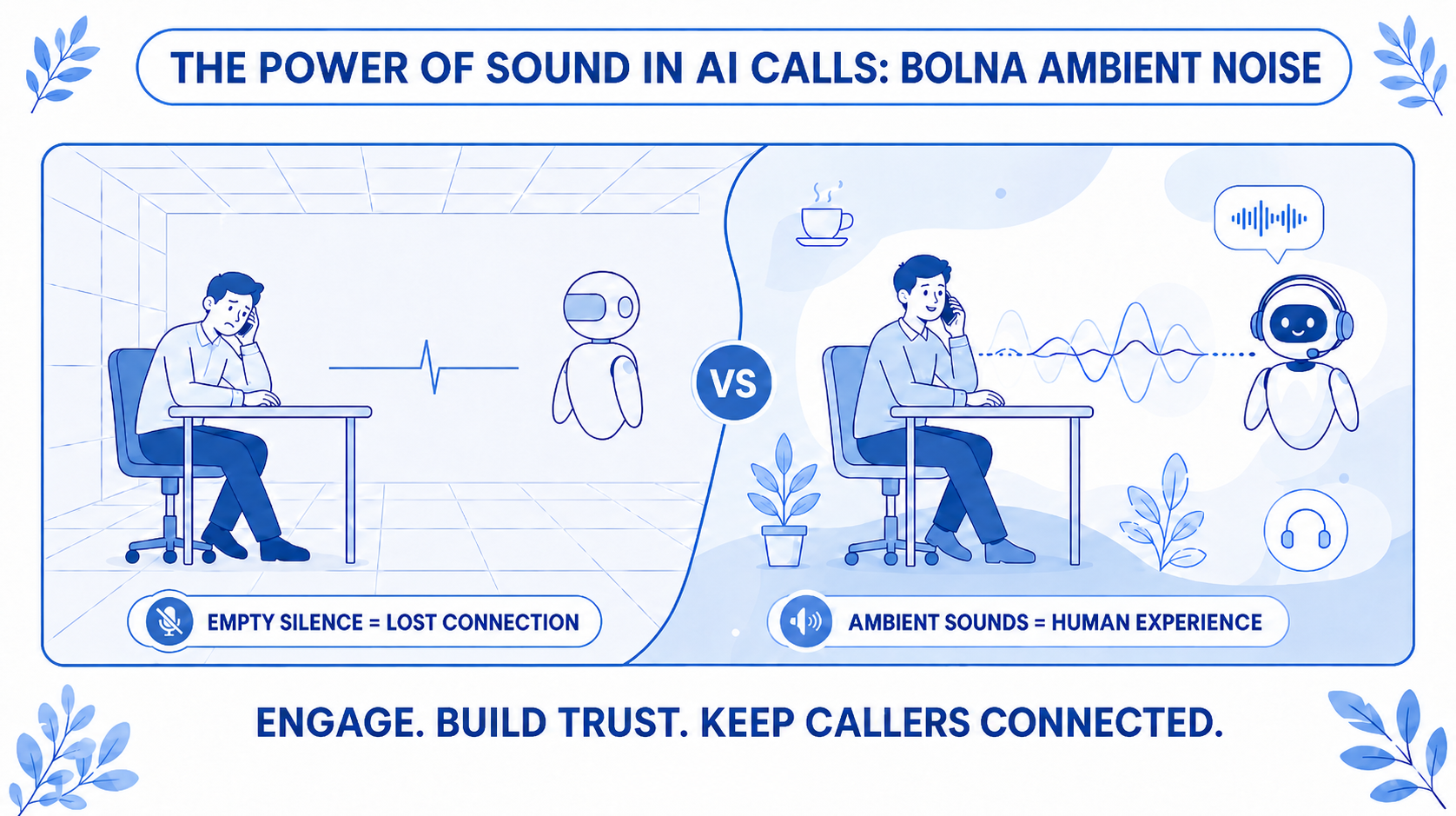
Pick up your phone and call a real call center. Listen for the first two seconds before anyone speaks.You will hear a faint hum of voices in the background. Someone typing. A chair shifting somewhere. None of it loud enough to notice, but your brain registers it instantly. A real person is on the other end, in a real place.
Now imagine the same call, except the line is dead quiet until a perfectly clear voice greets you. You already know. You are talking to a bot.This is the gap most voice AI teams miss. Your model is fast, your responses are accurate, your voice sounds great. But the moment the call connects, something feels off. Callers disengage. They ask for a human. They hang up.
The fix is smaller than you would expect. It is called ambient noise, and Bolna now supports it on every agent.
Why Does Silence Make AI Calls Feel Unnatural?
Human beings associate total audio silence with something being wrong. In real-world calls with human agents, there is always ambient sound: the low rumble of an office, the faint chatter of a call center floor, background noise of an environment. These sounds are subconscious signals that the conversation is happening in a real place.
When a voice AI agent operates in complete silence, none of those signals are present. The audio environment is sterile in a way that no real human call ever is. The caller cannot always identify why, but they sense it. The call feels artificial, and trust drops. Ambient noise does not fix every caller experience problem. But for many teams, it is the single highest-impact, lowest-effort improvement they can make.
What Ambient Noise Options Does Bolna Support?
Built-in Preset Tracks Bolna ships with three preset tracks you can enable immediately from your agent settings:
Coffee Shop: Background sounds of a coffee shop environment. Works well for conversational agents, scheduling bots, or any agent where a relaxed and approachable tone fits the brand.
Office Ambience: Subtle office background noise. The right fit for customer support agents, enterprise-facing bots, or any context where a professional environment is appropriate.
Call Center: Call center ambient sounds. Best suited for high volume outbound calling, collections, or any use case where the caller expects to be speaking with a support operation.
Custom Ambient Noise Tracks: Bolna now also supports uploading your own custom ambient noise tracks, giving you full control over the background soundscape of your calls. You can upload any `wav` or `mp3` file up to 10 MB, list all available tracks including your custom uploads alongside the presets, and delete custom tracks when no longer needed. The full reference is covered in the Call Tab documentation.
Frequently Asked Questions
Which telephony providers support ambient noise? Ambient noise is currently supported with Plivo and Vobiz telephony providers only.
Can I use ambient noise with a SIP trunk? No. Ambient noise is not available for teams using [Bring Your Own Telephony](https://www.bolna.ai/docs/sip-trunking/introduction) via a SIP trunk at this time.
What file formats are supported for custom tracks?
Custom ambient noise tracks must be `wav` or `mp3` format and under 10 MB.
How do I disable ambient noise?
Ambient noise is disabled by default. You can turn it off at any time from your agent settings.
Where do I enable it?
Through the Call Tab in your agent settings on the Bolna dashboard.
Get Started
Ambient noise is available now on Bolna. Preset tracks can be enabled directly from the Call Tab in your agent settings. For custom tracks, refer to the Call Tab documentation.
